Saturday, August 27, 2016

App All Star: ChatterPix Kids


ChatterPix Kids is simple to use, fun and engaging app developed by Duck, Duck Moose.  The concept is fun, the app allows you to turn anything into a talking picture.  To begin, import or take a picture, draw a line on the picture, and record a message.  This process results in a video of the chosen image, delivering the recorded message. The completed video can be saved to the camera roll on the device for viewing.

Our team used this app much like I described in the Talking Tom post.  ChatterPix Kids is a great tool for simple social stories and reinforcing messages.  The power is in the image that is used, it can be tailored to the child's preferences.  For example, we had a student who was very interested in pirates.  This same student was struggling with walking in the halls, not always being first in line and keeping his hands to himself in the halls.  His teacher had tried some social stories and was having some success, but she decided to tap into the power of the pirate.  She imported a picture of a pirate and had her husband use his best pirate voice to record a scripted message.  The message included the student's name and some pirate vocabulary.  She played it for the student and he was delighted that the pirate was talking to him.  He took the pirate's advice very seriously and showed improvement in his ability to follow rules in the hallway.  He would often quote the pirate to remind others of the rules.  Another teacher delivered some social stories to a Disney obsessed student via Disney princesses and saw success.

Another possible application is using the app as a means for students to demonstrate what they have learned after a project is completed.  For example, after a study of animals that live in Minnesota, a student can choose a picture of an animal and record some simple facts about that animal, then play it for the class, and email to parents.  The app is free, download it and see what you can do with it!

Wednesday, March 9, 2016

Four Reasons to join the Division for Early Childhood

This week, the Minnesota Division for Early Childhood (MN DEC ) is hosting the Spring Practitioners Conference.  This conference is a wonderful networking and professional development opportunity.  Not all of the practitioners who will be attending are members of DEC, so I wanted to take this opportunity to share the benefits of being a member and encourage practitioners to join.  I joined because I wanted to increase my leadership skills and get involved.  I wanted to be a voice in the field and grow professionally.  There are many benefits to being a member, here are my top four reasons to join.

Content:  If you don't know it already from reading other posts, I like research.  Because I am a member,  research journals are delivered to my door and I can access the online archives.  When I get into those journals and archives, I get lost in all of that evidenced based goodness!  I can be confident that I am staying relevant in my practice and using interventions and practices that are grounded in research.     

Discounts and relevant professional development:  DEC frequently provides discounts to members on conferences and other resources supported by DEC.  DEC offers Learning Decks, professional development webinars, at a discounted price.  For $25.00 you can receive up to date, pertinent PD, in the comfort of your home or office!  So far, I have attended one of the Learning Decks and was impressed with the quality and relevancy. I plan to take advantage of this resource again.   

Networking
Membership provides opportunities to expand my professional network.  I have attended conferences, joined the board, and joined special interest groups.  This expanded network, which includes DEC members from across the nation, provides access to resources, knowledge and inspiration.  

Get involved, be a leader, be an advocate: I recently joined two special interest groups offered through DEC.  Involvement in these groups, involvement on the board and other networking opportunities will further my ability to advocate for the field and be a voice.  DEC communicates policy and advocacy information to members.  Staying up to date in these areas supports my efforts to raise awareness about the importance of the work we do in the field of Early Childhood Education.

Joining DEC was a good decision.  Membership has supported my goals in the area of professional development and opened the door to new opportunities.  I hope other practitioners will consider the benefits and join.  If you are attending the conference, stop by the membership table and they will answer any questions you might have.

Monday, May 18, 2015

Playful parenting: PBS Parent Play and Learn app


In a previous post, I reviewed the app Sesame Street Family Play, an app that supports playful parenting by providing hands on, unplugged, play suggestions.  I have found yet another app that supports playful parenting.   PBS Parents Play and Learn app is a free, bilingual app (Spanish and English) that provides parents with simple activities to play with their children designed around familiar locations.  There are 52 activities and 13 games grouped around the following locations: Bath Time, At the Zoo, Playground, At a Party, Play Time, Grocery Store, Library, At the Park, On a Bus or Train, Kitchen, In the Car, In Town, and Restaurant.  In each section, there is 1 interactive game, 1 activity for babies, 1 activity for toddlers and 2 activities for preschoolers. The interactive games target math and literacy skills.  The games have a parent section that includes explanations of how the game promotes development and provides suggestions for extending the learning in the real world.  The activities provide suggestions rooted in evidence based practices, we know promote good outcomes for kids such as talking to children, singing, reading, and pointing out print in the environment.  The interactive game in the Bath Time section involves writing letters on a steamy mirror.  The name of the letter and the letter sound is stated.  The suggested activity for a baby in the Bath Time section is singing a song about washing different simple body parts.  With toddlers, parents are encouraged to explore the math concepts of volume by pouring water into containers, while using concepts such as empty and full.  In the Kitchen section, the preschool activity involves making patterns with fruit to make a nutritious fruit kabob.  The app occasionally provides new activities through a message section.

There is also a free play sticker area.  This sticker section is great for creative free play and it can be used to design more structured activities.  I have used the sticker section for activities such as creating patterns, repeating patterns and following directions. The stickers can be used for sorting activities such as sorting fruits and vegetables. Literacy activities can be extended with the stickers.  Children can search for stickers that have the same beginning sound, or attempt to find rhyming words.  


This app has been added to my parent resource pages.  It gets bonus points for being bilingual, free, and parent friendly.   

Thursday, May 14, 2015

Early childhood assessment with predictable book, Blue Hat, Green Hat


Repetitive books, books with predictable text, encourage children to read along and contribute verbally.  Blue Hat, Green Hat by Sandra Boynton, is my favorite book in this category.  The predictability, simplicity and pure silliness of this book keeps even the busiest of toddlers and preschoolers interested.  The turkey in this book has a great deal of difficulty getting dressed.  He puts his socks on his hands and his coat on his beak. I recommend this book to parents who report that they struggle to keep a child engaged in shared reading. In addition to recommending this to parents, I use this book during the assessment process, it is always in my assessment kit.   

When I read this book with a toddler or preschooler, I add another level of predictability by using an action as I say oops. I lightly tap my forehead with my hand.   This provides an opportunity to work on imitation of actions along with sounds and words.  It is a bonus that the predictable word is an easy word to approximate.  Even children who have limited verbal skills might be able to produce an approximation of “oops."  If a child is not able to produce an approximation, he might be able to participate by doing the action at the appropriate time.

During the assessment, I read the book, then I give the book to the child and tell him to read it to me or to his parent, or to a doll.  Here are some of the skills I consider during the assessment.  Several of these are skills are included on the Teaching Strategies Gold in the ares of literacy, language and cognitive.   

Attending to a short, predictable book:  I find that this book has better odds of keeping the attention of some children who struggle to attend to books than many others I have used.  Parents frequently comment that they are surprised to see a child attending to the book.  This story really can keep the attention of even some of our busiest little ones.  

Completing predictable lines/contributing language during a book:  Often after the 2nd time through, a child can’t help but chime in with “oops."  It is fun and silly! 

Shifting gaze from the book to the reader’s face:  For children who sometimes forget to shift attention from an object to face, this book is great for encouraging shifting.  Because of the predictability, the child knows I am going to be silly at the end of each line, but I pause and wait to do the action or say oops until the child looks up at me.  

Imitate actions/sounds:  I have completed evaluations and observations where the child imitates very few actions or sounds, but might imitate the action of tapping their forehead and making a sound for oops.  

Showing understanding of absurdities:  It is always interesting to observe if a child sees the humor on the page before I say oops. 

Verbalizing what is wrong and how to fix it:  When assessing verbal children, I ask what is wrong and what the turkey should do to fix it. The child gets to practice answering “what” and “where” questions.  Where should the turkey put his coat?  

Predicting and answering logic questions:  I ask what is going to happen when the turkey is jumping off of the diving board in his clothes.  I ask what he forgot to do. I ask how he is going to get his clothes dry.  

Understanding that text has meaning:  As I say “oops,” I point to the word and say, “this says oops."  When I am done reading, I have the child read the book back to me.  I observe whether the child points to the word as he says oops.  There are 2 words above each picture, so a child might notice as I point to the words that the first word is a color word and the second is the clothing word.  I watch to see if the child points to the words as he reads it back. 

Colors:  I observe if a child is saying the correct color as he reads it back to me. 

Story retell: The predictable text is wonderful for promoting story retell. If a child knows colors and clothing, he or she can read it back without help.  

Turning the pages:  Can the child turn pages one at a time?

Orientation of the book:  When it is the child’s turn to read to me, I hand the book to him in an upside down position to observe if he turns the book right side up.     

Pretending to read:  Does a nonverbal child babble with a reading like intonation?  What level of detail does a verbal child include when reading the story?  Does the child move from the front of the book to the back?  Does he point to words as he reads?  


Some parents who observe this activity have purchased the book and report that they enjoy reading it with their child and in some cases it might be the first book they have felt successful with in terms of keeping their child engaged in shared reading.  I always encourage parents to connect books with real life.  A father recently shared that he used the framework of the text from this book to play a game with clothing as he was getting his toddler dressed.  He took different clothes from the drawers, labeled the color and the item of clothing, then ended the sequence by putting a sock on his toddler’s hand, pants on his head, or shirt on his legs and of course, saying “oops."  What a great extension activity!  So, what is your favorite predictable book?  

Wednesday, January 28, 2015

Visual Supports: Shopping List Bingo on the iPad

As I interview parents about community outings, many share frustrations with grocery store visits.  We often discuss strategies for providing distractions throughout the store in order to avoid challenging behaviors.  A short visual shopping list gives the little shopper a chore.  This activity keeps the little shopper busy and promotes early literacy skills, vocabulary building and conversation between the adult shopper and little shopper.  I used the app Pages to create the visual, then took a screenshot of the visual.  For the Bingo part of the activity, I used the app, Doodle Buddy.  Doodle Buddy is a free app, but there are some advertisements.   To pull up the visual, choose the tic tac toe icon on the bottom, choose "photos" then "camera roll".  Select the screenshot.  


 For younger shoppers, use the stamp icon to select an image.  As the little shopper finds the items, he or she stamps the image.

For older, little shoppers, consider choosing the writing tool so the little shopper can practice some fine motor skills by making some Xs or scribbling on the item.  Guided access can be used to keep the child in the app and disable the icons not being used.  This activity can also be used as a strategy for completing a sequence such as dressing or the bedtime routine.


Sunday, January 4, 2015

Playful parenting: Sesame Street Family Play


In my search for resources that for support playful parenting, I came across the app, Sesame Street Family Play.  The app is $.99 with an additional in app purchase.  According to the description of the app, it is designed to encourage everyday playful moments and includes 150 game ideas. The $.99 version of the app provides game ideas for the home.  The in app purchase is $1.99 and provides additional activities for when away from home and traveling. 

The app prompts the user to choose the area of the house where the play will take place, then asks how many kids will be playing.  Choices for locations are Living Room, Kitchen, Bathroom and Bedroom.  Options for players are from 1-4+.  Different Sesame characters present games using readily available materials in the chosen area of the home. Sock Skee Ball is a game that was generated when the bedroom was chosen as the location.  The app asked if there were several belts and socks available.  To play the game, rolled up socks are thrown into looped belts that are placed on the floor.  Each loop is assigned a different point value.   At the end of the activity, the app describes what type of skills the activity is promoting.  In this case, the app explains that Sock Skee Ball promotes spatial relations, counting, and addition.  There were games for different routines such as clean up, bedtime, and bath time.  An example of a clean up game is, Cup Handed Robots.  The idea of the game is to see how fast you can pick up things with plastic cups on your hands.  A novel way to get reluctant cleaners engaged in the process. 


The home version of this app is a great tool for a parent or caregiver to turn to when a new play idea is needed.  The developers have designed many appropriate activities that promote imaginary and active play.  

Sunday, July 13, 2014

Research versus reality television

Please don't judge.  I don’t enjoy reality television, but I do enjoy reading research related to my field.  Drama is draining, I avoid it as much as possible. Research, on the other hand, is filled with facts, no drama. My magazine holder is filled with journals and that makes me happy! 

 As much as I enjoy reading research, I don't enjoy doing research myself.  When I completed my thesis, the literature review was my favorite part of the process.  I savored my time in the library, immersed in the work of others.  Less enjoyable was the process of completing my own study, crunching the numbers and interpreting the results.  The amount of work needed to complete my small, rather inconsequential study, was staggering.  Completing the process increased my appreciation and respect for those who complete well designed studies on much larger scales.  To all of the researchers out there, thank you for all of your hard work.    

I view reading research as a professional responsibility, it is a practice that supports intentional, effective teaching.  It is my responsibility to use effective, evidence based practices when working with families and children. Because I work in the field of early intervention, there is an inherent sense of urgency.  I know that the early experiences I am promoting and providing  make a significant impact during this small window of development.  I want to work with families and teams to choose interventions that will significantly change the developmental trajectory of a child. Reading research helps me stay relevant and be confident in my choices.  It helps me decide what I need to keep doing, start doing and stop doing.  I know that if my teaching looks the same as it did 20 years ago, I am not being as effective as I could be.  Of course, there are practices from 20 years ago that still have plenty of evidence supporting effectiveness, but I also need to identify those stale practices that are not research based. This can be a daunting task, it is easy to drift from implementing a new practice back to the ineffective practice.  Knowing what works and putting it into practice are two very different things.  That is why my latest reading subject has been implementation science.  Again, don't judge! 

It is much easier to stay current than it used to be.  Two things helped me amp up my research mojo, I joined DEC and I followed more researched based organizations and institutions on Twitter.  Now that I am a DEC member, research journals are delivered to my door and I can access the archives.  Researchers and policy organizations are a part of my healthy, balanced, personal learning network (PLN).  Here is a link to my Twitter list of research and policy related organizations. Here is a link to the CEC/DEC membership page. 

Now back to reality television.  Maybe I would like a reality show about researchers and peer review boards?  


Tuesday, July 1, 2014

ECSE App All Star: Photo Buttons

Photo Buttons by  Software Smoothie is a simple cause-effect app.  Touching the screen makes a colorful circle appear, tapping the circle reveals the picture and accompanying sound, tap the picture and it pops and disappears.  There are 21 backgrounds to choose from, with a black screen as an option.  The black screen with the colorful buttons offers nice contrast for children with visual impairments. The app comes with 54 sample buttons.  Under settings, you can select which images you want to appear.  You can create customized buttons by using the device’s camera or pulling an image from the camera roll.  You can also add a recording to the image.  Creating customized buttons was a quick and easy process once I figured out that when in landscape orientation, I had to scroll down to find the “save” button.  The app is child friendly in that it does not have any ads or in app purchases and to access the settings, you need to press and hold the icon.  A few features that would make this app even better would be the ability to organize the custom buttons and add an option to make the buttons bigger.  I also wonder how many custom buttons you can make.  I am not sure if there is a limit, I couldn't find any documentation about this on the support site.  


This app stands out from other cause/effect apps because it allows me to customize the images that are triggered by the touch.  So now I have an app option that builds visual discrimination skills, cause/effect skills, and functional vocabulary.  This app would be a good option for use with children learning English as a second language.  I can also see therapists and interventionists finding uses for this app in working on a variety of language and readiness concepts.  I look forward to hearing about how this app is being used in ECSE.  Here are a few app activity suggestions.  

Photo Buttons App Activity:  Color scavenger hunt:  Children really enjoy the novelty of popping the images and watching them disappear and going on scavenger hunts.  Create a custom scavenger hunt around targeted skills such colors.  Create buttons for a variety of colors and the numbers 1 through 5. Touch the screen until several numbers and colors are on the screen.  Students take turns choosing a number and color, finding that number of objects of the chosen color, and then popping the number and color to complete a turn.

Parent App Activity:  Nature scavenger hunt:  Encourage outdoor play and exploration by using the same method as above to create custom buttons of things in the your yard and outdoor areas.  Help your child find and talk about the items before popping the image and making it disappear.  

Sunday, February 23, 2014

ECSE App All Star: Breathe Think Do With Sesame


Not all children who are referred to and evaluated by our team meet the criteria for special education services.   These children were referred because they are struggling with some aspect of development and their parents are often searching for resources and support. I collect parent friendly resources on a variety of child development topics to offer these parents.  Because we evaluate infants, toddlers and preschoolers, self regulation skills are frequently a topic of discussion and concern.  When I found Breathe Think Do With Sesame, in the app store, I knew that I had found a resource to add to my Self Regulation resource list. I plan to share this app with parents, our Occupational Therapy team and Early Childhood Special Educators.  This app is a great addition to our social emotional skills toolbox.  Currently the app is free.    

The app serves two purposes.  It educates parents and caregivers about self regulation skills and it provides opportunities for children to practice the skills in a structured but engaging way.  The Parent section provides tips and strategies for several challenging issues such as separation, persistence and aggression.  This section begins with an explanation of why self regulation skills are important and provides a script of what parents can say to children who are experiencing difficulties in this area.  Finally, a specific strategy in each area is given.  In the aggression section, the strategy provided is tracing a child’s hand and helping him think of 5 gentle things he can do with his hands so he can think of that next time he is upset.  Some of the sections include video clips.  A theme throughout the tips and strategies section is the framework of breathing, planning and doing. In the settings, the app has a personalization option.  Children are prompted to say phrases that will be repeated throughout the activities such as “think of a plan”.  The language can be changed from English to Spanish in the Settings area.  


The child section has 5 activities and features a monster. Each activity starts with animation showing the monster struggling with a challenging issue.  The issues are getting on his shoes, separating from his mother, a tower of blocks that falls, waiting to use the slide on the playground, and being fearful of the dark at bedtime.  After the introduction the screen changes to the monster surrounded by red and looking anxious, upset and/or mad.  The narrator encourages the child to tap the screen to help the monster take 3 breaths through his nose and out his mouth.  The background color changes from red to blue as the narrator talks about the monster getting calmer.  


Next, the narrator prompts the child to pop bubbles to make the monster think of a plan. The monster thinks of 3 options for a plan.  The child gets to choose which plan the monster will use and watch the result.  Self regulation vocabulary, such as calm, frustrated, relaxed, and anxious are used throughout the activities.  


This app is one of many resources Sesame Street offers in the Little Children, Big Challenges toolkit.  I have bookmarked several resources from the toolkit to share with parents.  Do you have any other apps you recommend for teaching and/or practicing self regulation skills? 

Wednesday, February 19, 2014

Engaging apps for Scribbling and Drawing

Today I am highlighting 2 apps that I would recommend to pediatric Occupational Therapists, parents and teachers of young children, and early intervention providers.  Lazoo offers two apps (currently free) that will get your most reluctant drawers and scribblers motivated to join in the fun. The apps are so engaging, I found myself wanting to try out each scene, looking forward to the animation on each page. The developers were creative in giving a purpose to the doodles and scribbles.

There is a parent section available, which as you know, earns an app bonus points in my book.  The parent section encourages parents to let their child engage in open ended play.  Parents are encouraged to comment on the drawings and examples of questions that can spark some conversations are provided.  Collaboration, creativity, and the process are emphasized.  Here is a quick description of each app.

Let's Color
The app offers over 25 different scenes.  Each scene has a written question or prompt that is read aloud as each word is highlighted.  For the example below the prompt is "These kids are playing in the mud, make it messy!".  The prompt is only read once and there does not appear to be a way to have it repeated.  There are 5 tools available to produce the drawings and there are also stickers for added embellishment. Once the masterpiece is created, the child hits the "GO!" button and watches as her artwork becomes part of the animation. Several of the scenes promote collaboration and imitation by providing more than one image so a parent, teacher or peer can work on one and the child can work on the other.  For example, in one scene the child is prompted to draw hair on a figure and there are 2 figures.

Completed picture from Lazoo's Let's Color app.

Squiggles!

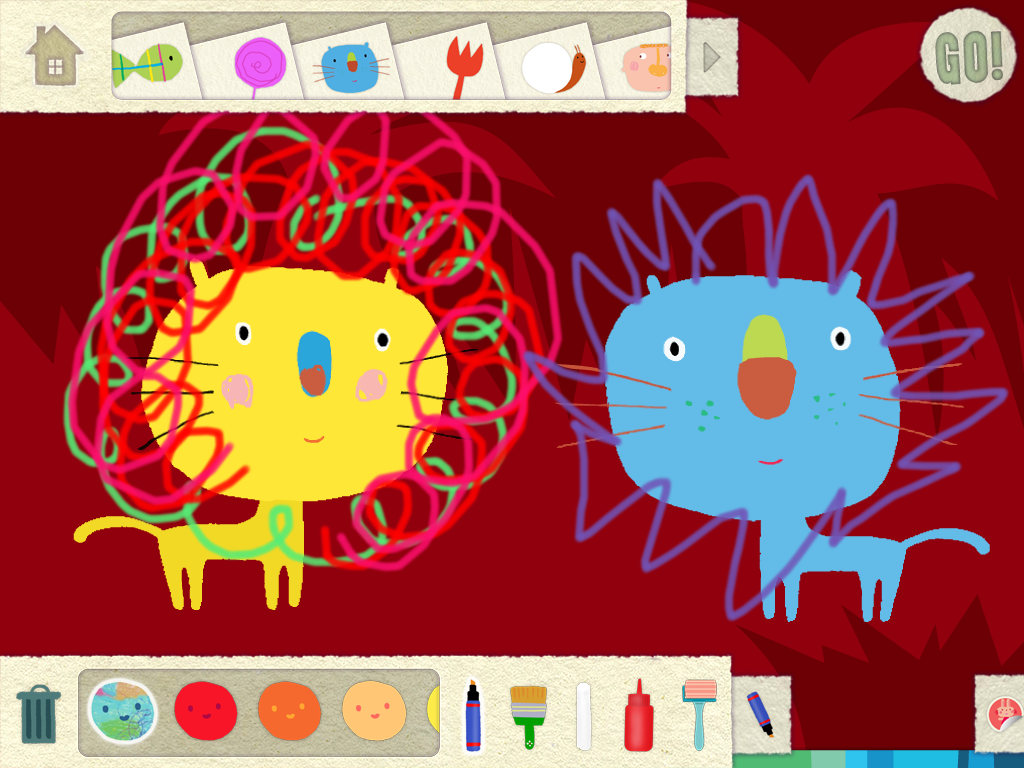
This app has several features in common with Let's Color. A friendly voice provides a prompt such as "Draw a squiggly mane to turn this kitty into a lion." In some scenes there is more than one image so a team can collaborate and imitate. The tools and the stickers are the same.  This app is different in that it provides a prompt in the form of a model of producing squiggles in the intended area and there are fewer scenes.

Completed picture from Lazoo's Squiggles! app
Give these apps a try and enjoy the process!


Sunday, January 26, 2014

Snowballs, embroidery hoops and the app, Faces iMake


Blizzard conditions, low of -19 degrees tomorrow morning, school closed tomorrow, likely late or closed on Tuesday, our crazy winter continues.  Perfect conditions for another winter related post.  Snowballs by Lois Ehlert is a favorite winter read for preschool teachers.  In this post, I share a few extension activities.

A traditional follow up activity to the book is an art project where children use various materials to create a collage of a snow creature similar to the book.  I loved displaying these creations, each one so unique and reflecting each student's ideas and personality.  I wanted to extend this activity by using loose parts that can be arranged and rearranged at a center. During a family gathering, my nephews and neice scoured the kitchen, junk drawer, art cabinet, toy box and yard for materials, added a few embroidery hoops and white paper, then went to work.  Different sizes of hoops were used so size concepts were discussed.  Following the theme of the book, the kids created snow moms, snow dads, snow babies and snow animals.  We took pictures of each creation and planned to create a digital book, retelling the story, but we didn't get that done.  It was acutally nice out so we went outside and played in the snow instead!


The second extension involves a "go to App" on my iPad, Faces iMake.  It is a great creative outlet and is a perfect match for the Snowballs theme.  Kids can create snow people and snow animals using a variety of vocabulary building props available on the app.  The app can be customized by using the camera option.  Pictures can be imported from the camera roll or taken with the camera.  Using a pencil eraser, the object can be cropped from the background and used in the collage. It is easy to resize and rotate objects, and objects can be locked and moved to the front or back.  Once again, the children can take pictures of their creations to share with others.  I enjoyed the video tutorials available on the app as well.  This app offers great features for the price and promotes creativity and vocabulary building.  For those of you in my region, stay warm, stay safe and think Spring!


Sunday, January 5, 2014

Mitten matching on Explain Everything


People in Minnesota are using the term “stupid cold” to describe the weather we will be experiencing over the next 2 days.  Tomorrow’s forecast is a high of -18 degrees, low of -28 degrees, with wind chills of 50 below zero.  Our state will experience over 60 hours of below zero temperatures.  On Friday, the Governor closed schools statewide for Monday.  It is cold.  I thought it would be appropriate to put together a post about a mitten matching activity I created using Explain Everything.  My previous post on using Explain Everything for story retelling gives more details about how to use the app. 

When I had a classroom, I offered a mitten matching activity using a clothesline, clothespins and children’s mittens.  It was great fine motor practice.  I usually had some students who struggled with the fine motor aspect of using a clothespin, so I adapted the clothespins, had an alternative  clothesline with velcro, and sometimes had the student match the mittens by pairing them on the table or floor rather than hang them.  This iPad activity would be yet another alternative for accessing this type of activity.  A fun variation of this activity would be to take pictures of your students' mittens and use those as the matching items. 

This video was created using the app Explain Everything and gives a brief overview of how I created the activity.  


I drew the clothesline using the writing tool.  I found the images on Google and saved the images to my camera roll.  I pulled the images into the slide and used the lasso cropping tool to crop the images out of the background.  I locked the clothesline and the mittens hanging on the line.  I locked the scale of the the mittens that will be manipulated by the students.  The locking function is activated by tapping square with an i on the left hand side, then tapping the object.  Everyone stay warm and stay safe. 


Tapping the information icon brings up this menu which includes the lock function. 


Monday, October 28, 2013

ECSE and Early Intervention: Welcome To Twitter!


I have been active on Twitter for several years.   It has taken some time, but I have found a network and community of inspiring early childhood educators, special educators and related service providers (Occupational Therapists, Speech Therapists and Physical Therapists).  While I have had a difficult time finding Early Childhood Special Educators and Early Intervention teachers or specialists, this seems to be changing.  In the last 2 weeks, I have added more and more people who have a background in Early Childhood Special Education and/or Early Intervention to my “following” list.  When they join, I want to be supportive and personally welcome each of them, but I have so much to say I can’t get it done in 140 characters.  Instead, I thought I would write a welcome letter and invite them to read it. 

Dear Early Childhood Special Education/Early Intervention provider,
     Welcome to Twitter.  I am glad you are here.  I have been anxious to connect with professionals from our profession and it has been difficult to find you!  My PLN has been a great support for me and Twitter is where I connect with them. Twitter is my primary source of professional development.  I hope you find it as useful of a tool as I have.  There are many established communities of professionals in the Twittersphere.  My goal is to build a community of ECSE and Early Intervention professionals on Twitter.  There are a few things we can do to make it easier for us to connect with one another so that we can maximize the Twitter experience. I know many of you are new to Twitter so I am going to offer a few general tips.  
     Let’s start with who to follow.  If you are interested in finding more professionals in our field, “Lists” are helpful.  Many Twitter users create Lists of people who are similar in some manner.  I have a List of ECSE professionals, Related Service professionals (speech, OT, PT), and Assistive Technology tweeters.  You are welcome to access my lists and see if you can find some new people to follow.  You find a person’s lists under their profile.  Another way to find someone to follow, is to look at who other ECSE professionals are following, also found under their profile.  
     The next useful tool is hashtags.  Hashtags make information searchable, allowing users to find information specific to a topic such as Early Childhood Special Education.  Hashtags are the little # symbol, formerly known as the number sign, that you see inserted in tweets.  These hashtags, while sometimes annoying in popular culture today, do serve a purpose.  Give it a try, try searching #earlyedsped.  If you are using Twitter, put the hashtag in the search field and the stream will appear.  Another tip is to consider using an app such as Tweetdeck or Hootsuite.  These programs allow you to organize Twitter feeds by hashtags, lists and users.  
     There are a few other hashtags to consider.  Hashtags tend to evolve, new ones appear based on campaigns and new interests.  Keep your eyes open for hashtags that are commonly used by those who tweet in the early childhood world.  We are an interesting field because we have one foot in the Early Childhood world and one in the Special Education world.  We can learn from and contribute to both fields.  Therefore, I follow many Early Childhood hashtags such as #kinderchat, #ece, #earlyed, #b25, #prek, #preemies, and #ecechat.  On the Sped side, I follow hashtags such as #spedchat, #atchat, #autism, #spedplc, #inclusion and #slpeeps.  Our field is in need of a unique hastag. I originally tried #ecse but it seemed that the #ecse hashtag apparently has some meaning in French and is was being used heavily for that purpose.  At that time, the feed created by #ecse was more French than ECSE related.  That being said, some of us continue to add it to tweets so it worth following that one.  I have found useful information under #earlyintervention, but it is also used by professionals in other fields such as mental health, chemical dependency, and medicine. I am proposing a hashtag more specific to our field (I feel like I am running a campaign!!),  #earlyedsped.  It is still a little long, but I am hoping that it will catch on with birth to 3 early intervention providers and Early Childhood Special Education professionals.  I am also hoping that related service providers who work in early childhood will find and use it.  It can also be a place where early childhood educators, child care providers and other caregivers of young children can look for information related to young children with special needs.  I usually include #earlyedsped in my tweets along with any other tags I think might be relevant.  I am asking you to please consider using #earlyedsped when you are tweeting something that would benefit other ECSE/Early Intervention professionals, or you are asking a question and want feedback from other professionals.  I look forward to learning from you!
      One last suggestion, then I will stop!  Other professionals appreciate it when you share information from conferences or other professional development sessions.  Twitter is a useful platform for this purpose.  Next time you are at a state level DEC conference, an ECSE leadership conference, or any other training related to our field, consider tweeting about it.  Karen Nemeth wrote an article about why and how.  Because our field is just starting to use Twitter, you may need to suggest a hashtag for the conference or session.  Remember to try to keep the hashtag short so it doesn’t eat up your allotted characters.  When you start tweeting about it, make sure to also add #earlyedsped so we know it is related to our field.  
     I hope this information is useful and will help those of us in our field connect.  I look forward to some great conversations.  If you have any questions or suggestions about using Twitter, please email me.  I am compiling a list of ECSE and Early Intervention blogs, so if you blog or have a website, tweet it to me or email.  My email is jodialtringer@gmail.com.  

                                                                                    Sincerely,
                                                                                    @jodialtringer
                                                                                    Jodi Altringer

Sunday, October 6, 2013

Why Early Education professionals should use Twitter.

Recently someone asked me why early childhood educators should connect through Twitter. She shared that her preferred social media platform for professional development is Pinterest. 
I use Pinterest and I like Pinterest.  Pinterest is a great tool for finding and sharing teaching materials and strategies.  I think this is important and beneficial, but there is more to the field of early education than instructional materials, art projects, and thematic units.  There are the philosophies, frameworks, and beliefs that lead us to choose the materials we are using.  There is not just the “what”, there is the “why”.  Why are we teaching what we are teaching, why are we teaching the way we are teaching, and why are we using the materials we are using?  I am challenging early educators to move beyond Pinterest, because Pinterest isn't conducive to conversations. I am challenging early educators to take the next step and engage in conversations about early education on Twitter.  The conversations taking place move beyond art projects and themes.  On Twitter, early educators are challenging one another, discussing best practice, asking “why”, discussing research and advocating for developmentally appropriate practices.  They are talking about the importance of early education, policies that shape our profession, and practices that are effective and not so effective in getting the results we hope to achieve.  The conversation is taking place with or without you, I am hoping to convince you that it is worth your time to join the conversation, because our field needs more voices. 

K-12 educators are reaping the numerous benefits of connecting with others through Twitter and blogging. The conversations they are having related to pedagogy, research, and what is working and not working in education, challenge individual educators to continue to improve and advance the education profession. These educators' voices are being heard.  Policy makers are aware of the conversations and taking note. The field of early childhood education can not afford to miss out on the opportunities that Twitter presents to our profession. 

Historically, early childhood has often been overlooked and not given the same respect or attention that is given to the K-12 world. Our field is finally getting some attention. This attention brings with it a great responsibility and sense of urgency. We need to show that as a field, we are also discussing pedagogy, research and “why”. We need to be recognized as a professional group who stays current, integrates research based practice, and knows how to teach.  We need to connect and converse so our voices will be heard. We need to share failures and successes so we move our field forward. Collectively we have a rich experience and background, our conversations can encourage and support one another to be intentional in our teaching, leading to positive outcomes for the children and families we serve. 

Another reason connecting in early education is beneficial is related to the concept of “burn out”.  We have important, rewarding, and often challenging jobs. I have found that connecting with others has lessened my sense of burn out and has sparked a renewed passion in professional development. Knowing that others are facing similar challenges is reassuring. Hearing the strategies they are using to overcome these challenges is inspiring. Reading the latest research, discussing philosophy, beliefs and “why”, strengthens my resolve to integrate research based practices into my teaching and to adapt and improve.  It also inspires me to  advocate to do what we know is best for children even when faced with many barriers.  Connecting with others leads to reflection, reflection moves you forward, moving forward helps you to avoid burn out, stay motivated and stay inspired. 


Being a connected early educator benefits you, your profession and ultimately, your students.  I hope you will consider joining in the conversation.  My Twitter handle is @jodialtringer. To get started, consider searching the following hashtags;  #earlyed, #earlyedsped, #kinderchat, #ecechat, #earlyintervention, #preschool, #childcare, and #preK.  Talk to you on Twitter! 

Monday, August 19, 2013

Story retelling with Explain Everything app


Story retelling is a key strategy in promoting early literacy skills in young learners.  Story retelling supports language development, increased comprehension and encourages a deeper understanding of the language structure of books.  It provides opportunities to practice sequencing and use new vocabulary.  Research suggests that story retelling is more effective than teacher questioning in increasing comprehension.  The Minnesota Early Childhood Indicators of Progress include two related indicators, retelling information from a story and representing stories told or read aloud through various media during play.  

There are various strategies for story retelling.  Using props or toys related to the story, using sequencing cards, role playing and acting out stories are some of the strategies that are effective.  This post highlights the use of an app as another strategy for retelling stories.  The app is Explain Everything and it is one of the apps I think every teacher should have on the iPad.  It is versatile, easy to use and affordable.  It is my "go to" whiteboard app because of one particular tool, the free select cropping tool.  This tool essentially allows you to create stickers/props that can be manipulated to retell the story.  Think of it as technology’s version of flannelboard stories or tongue depressor props and the best part is the animated video can be shared with others.    

Here is a quick explanation of the process I used.   I went to the site, Kizclub to get the visuals.  Under "Stories and Props" there are visuals for many of my favorite books.  I saved the PDF’s to Dropbox in a shared file folder so that other teachers can access them.  I reviewed the PDF guide for Explain Everything and went to work.  Here is a link to the PDF guide for your reference. In order to use the free select tool I took screenshots of each page of the PDF so I could edit the photo.   I took a screenshot by pressing the home button and power button at the same time. I opened a new presentation in Explain Everything.  


I selected the insert image icon and chose “Existing Photo/Video”.  I found the screenshot in the camera roll and selected it.  Next, I chose the free select tool and outlined the image I wanted and selected done.  I repeated this process until I had  all of the props on the slide.  In the example, I created a second slide with the images of the characters in “wake up” mode.  


The next step is to record the child retelling the story and manipulating the props.  The finished product can be sent to You Tube for sharing or can be viewed on the iPad.  

Here is the example using the Napping House props.  I read the story with Olivia and then we went through the book again and looked at the pictures more closely.  I had printed out the props and taped them onto blocks.  She stacked the blocks in the order of the story as I retold the story without the book.  I presented the app and told her that it was her turn to tell the story.  She was somewhat shy about being recorded so I provided some support and prompting.   


In this second example, we personalized the experience.  I took a picture of Olivia in a sleeping position and we removed Granny and put Olivia in the story.  She asked me to tell the story, so I did, but she couldn’t resist joining in, it is a great example of how technology can be socially engaging and promote cooperation and interaction.  She liked this version of the story even more! Next time I would have her draw a house and a bed with the drawing tool.  What story are you going to try?  

Monday, July 22, 2013

Time Tracking Tools


Special education teachers and related service providers (SLP, OT, PT) are often required to track and report the time spent on tasks for funding purposes or for time studies.  Related service providers on our team, track indirect and direct service time for 3rd party billing.  As a member of the evaluation team, I track the time I spend on evaluation tasks for each student and report it for funding purposes.  As things got busy, I found I was doing a poor job of tracking my time and ended up estimating.  I turned to technology to help me with this task and I have tried several different tools.  Right now, my “go to” tool is a Chrome app, Task Timer.  I create tasks using the initials of my students.  When I am working on a task related to that student, I start the timer.  The timer runs in the background.  The trick is remembering to stop the timer when you switch tasks!  


I also use a Chrome extension, Simple Time Track.  Your lists of tasks appear when the icon is clicked.  When a task is being timed, “RUN” appears under the icon.  This is a helpful visual reminder to turn off the timer when done working on the task.  I use both tools for different tasks and as a result am doing a much better job of tracking time accurately.  


Friday, June 28, 2013

Create a Peek a Boo Book with Keynote for the iPad


Peek a boo slide with 2 strips removed.
Peek a boo!

Peek a boo is an entertaining, engaging, relationship building game.  Hiding and guessing games are always a hit with children.  Peek a boo books have a cover that is cut into strips and each strip is removed one section at a time to reveal the picture beneath.  I have created many of these books and found the very time consuming to create.  My purpose in using these books was usually related to vocabulary building. This activity infuses some novelty while providing the needed repetition to learn targeted words.  The books are visually engaging and parents always seemed to enjoy using this type of book with their child.  I recently discovered how to create a technology enhanced version of this book using Keynote on the iPad.  Unfortunately, as of when I posted this, Keynote on the iPad does not allow for recording so audio can not be added.  Therefore, this activity is not intended for learning centers or self directed time.  Instead, this is an activity tailored for two or more, an adult and child or children, engaging in this activity together, just like a book.  It could be used as a teacher led group activity.  This type of format lends itself to targeting describing skills and processing skills by giving the child a clue each time a strip is removed.  For example, when using the loon picture in the video, the following clues were given, “it is has feathers and lives in the water”, “it swims fast and eats fish”, “it is Minnesota’s state bird”, “it is a loon”.  A variation of this activity would be to provide a related video on the next slide.  In a home based setting, this activity would work well for labeling family members and household vocabulary. 

To create a slide, choose a blank slide and add your picture.  Add a shape, choosing the square.  Resize the square into a rectangular strip.  Repeat this until the picture is covered.  Choose the first strip and select "animate", then "build out" and select a transition, I chose "dissolve".  Repeat this process for each strip.  Press the play button to preview the slide.  You can change the order the strips are removed.  Continue this process until you have your book created.  

Here is the video describing how to create the slide on the iPad. The video includes a few shortcuts to help speed up the process.  


Note:  Creating the slide/presentation on the desktop version of Keynote is very similar.  On the desktop, you can create a recording for the presentation.  You could give the clues and the name of the object.  This variation would work well for a center.  A laptop could be used at center time and the student could use it as a self directed activity.  I tried to transfer a presentation created with a recording on a Mac to my iPad.  It transferred but without the audio, blah!  If you have Powerpoint and want to create a similar presentation/book, Gayle Lovely provides a revealing powerpoint template on her site.  Happy creating!

Tuesday, April 23, 2013

Creating Instructional Materials with Tiny Tap


Tiny Tap is an app that can be used by therapists, teachers and parents to create instructional materials for targeted practice of a variety of skills.  Users can create a game based page or book using photos or drawings.  Photos can be taken with the iPad camera or imported from the camera roll.  Also, drawings can be created within the app using drawing tools and stickers.   I created the picture scene below with the app, Felt Board.  I took a picture of the completed scene which was then saved to my camera roll.
The app is very user friendly but I will provide a few tips that might keep you from getting stuck.  Using this picture, I recorded my first question/statement: "Let's play a guessing game, I am thinking of an animal, it has whiskers, pointed ears and says Meow".  After recording the statement or question, you are prompted to trace around the correct answer.  When done tracing, tap on the question you finished and you will see a menu like the one pictured below.  


From this menu you can customize the experience by providing individualized feedback for the student.  You can add a response for the correct answer such as, "yes, you found the cat, it has whiskers, pointy ears and says, meow".  You can also add a response for the incorrect answer such as, "oops, that is not the cat, try again".  If you don't customize these responses, the app inserts various sound effects such as laughing, cheering and a buzzer noise.  Another helpful tip I can provide is related to the background music.  The music made it difficult to hear the prompts and it could be distracting for some students.  You have the option of turning off the music.  When you are on the screen pictured below, tap the cassette tape icon in the upper right hand corner, scroll down and select, "no music".  
Here is an example of a page I created using the app, Strip Designer.  I imported this photo into Tiny Tap and asked questions related to functions of the objects.  

Tiny Tap provides some supports to the learners during game play that can be helpful for learners with special needs.  If the student picks the wrong object several times in a row, the correct object is highlighted and the prompt is repeated.  There is also a replay button that can be selected and the prompt will be repeated.  The drawback of this app is the sharing options.  Games can only be shared through Facebook.  It would be nice to be able to share games with other Tiny Tap users via email.  

Tiny Tap has many possibilities for supporting learners who need targeted practice of skills.  Tha app could be used to target language objectives, ELL related objectives, math concepts, and of course literacy objectives.  Although I have not tried it, the app seems like it would be simple enough for a young learner to use with some support from an adult.  I would like to try having a student take a picture of a scene, create a game by giving clues and have other students play the game he or she created.  Has anyone had young learners create a game or book using this app?  How did it go?